Automated Bulk Form And Certificate Filling From Excel
Automated bulk form and certificate filling from Excel helps businesses use spreadsheet data to create multiple forms, certificates, letters, invoices, reports, and PDF documents quickly, accurately, and professionally.
What Is Automated Bulk Form And Certificate Filling From Excel
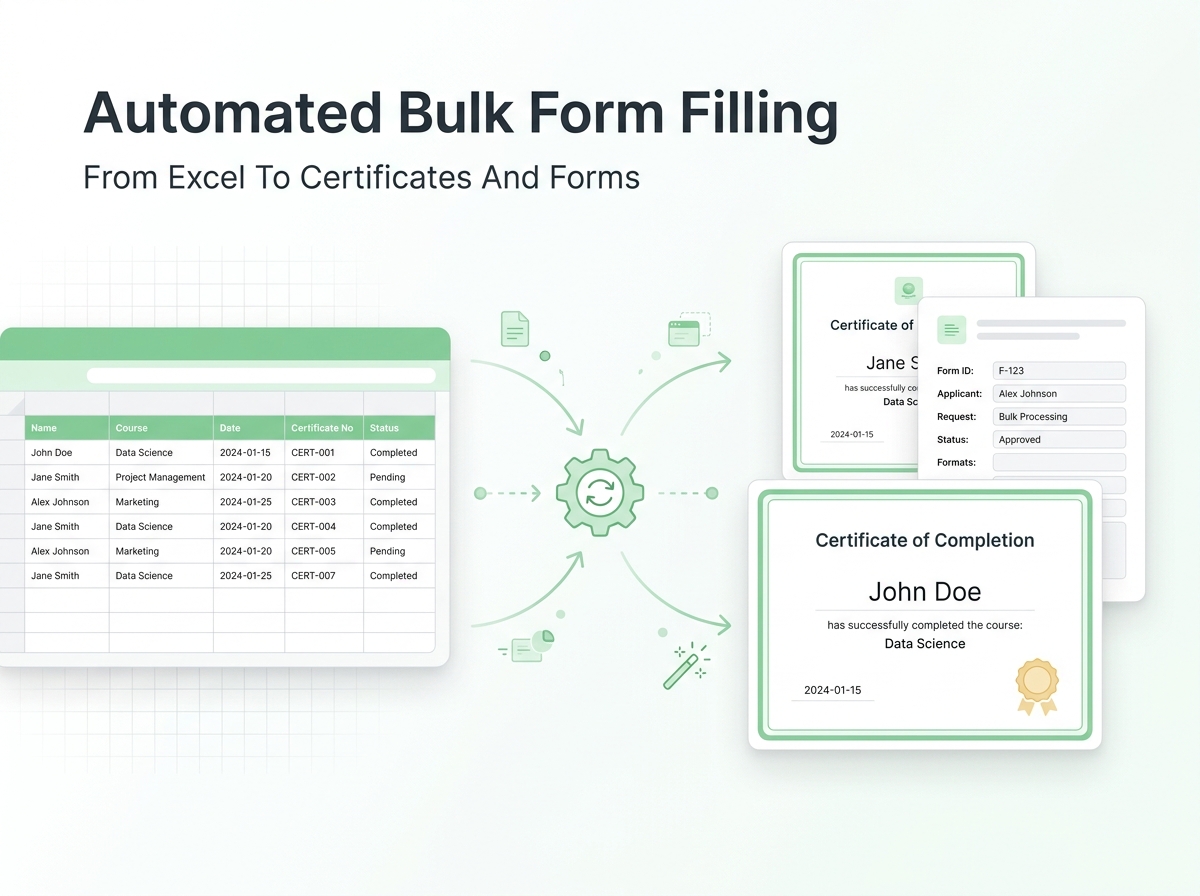
Automated bulk form and certificate filling from Excel is a smart way to create many documents using data stored in an Excel spreadsheet. Instead of typing names, dates, numbers, addresses, course details, invoice values, or employee information manually into each form or certificate, Excel can be used as the main data source.
The system takes each row from Excel and places the information into a ready made template. This template can be a certificate, form, letter, invoice, report, ID card, attendance sheet, admission document, payment receipt, or any other repeated document.
This process is especially useful when you need to create dozens, hundreds, or even thousands of files with different details but the same format.
Why Businesses Need Bulk Form And Certificate Automation
Manual document preparation takes time and often creates mistakes. A small typing error in a name, date, ID number, or amount can make a certificate or form look unprofessional. When the same task is repeated many times, the risk of errors becomes even higher.
Automated bulk form filling from Excel solves this problem by using clean spreadsheet data and placing it into the correct fields automatically. This saves time, improves accuracy, and creates a consistent format for every document.
Businesses, schools, training centers, offices, hospitals, event organizers, HR departments, finance teams, and service providers can all benefit from this type of automation.
With the right Excel automation setup, one click can generate hundreds of completed documents in Word, PDF, or printable format.
How Excel Works As The Main Data Source
Excel is ideal for bulk document generation because it stores data in a clear table format. Each row can represent one person, one customer, one student, one invoice, one certificate, or one record. Each column can represent a field that needs to appear in the final document.
For example, a certificate automation file may include columns such as:
Full Name
Course Name
Certificate Number
Completion Date
Instructor Name
Grade
Issue Date
Once the data is ready, Excel can send each row into a Word template, PDF template, form layout, or printable certificate design. The automation can fill the fields, save each file with a custom name, and even prepare the documents for printing.
Common Uses Of Automated Form And Certificate Filling
Automated form and certificate filling from Excel can be used for many professional tasks. It is not limited to certificates only. Any repeated document can be automated if the data is available in Excel.
Common uses include:
Training certificates
Course completion certificates
Employee experience letters
Salary certificates
Student admission forms
Customer application forms
Invoice generation
Payment receipts
Medical forms
Event participation certificates
Membership certificates
Appointment letters
Award certificates
Legal or office forms
Custom PDF reports
This type of automation is very helpful when your team prepares the same format again and again but changes the personal or business details each time.
Real Life Example Of Certificate Filling From Excel
Imagine a training institute that conducts a professional course every month. At the end of each course, the institute needs to issue certificates to 250 students.
Without automation, one staff member must open the certificate template, type the student name, course name, date, certificate number, and instructor name. Then the file must be saved, exported as PDF, and printed. This can take many hours and still may include spelling mistakes or formatting issues.
With automated certificate filling from Excel, the institute only needs to maintain one Excel file with all student details. The automation reads each row, fills the certificate template, creates a separate PDF for each student, and saves all files in a selected folder.
The final result is faster, cleaner, and more professional. The staff can generate hundreds of certificates in minutes instead of spending the whole day on manual work.
Useful Excel Formula For Clean Certificate File Names
Before generating certificates or forms, it is useful to create a clean file name for each document. This helps save every PDF with a professional and searchable name.
Example Excel formula:
=SUBSTITUTE(A2," ","_")&"_Certificate_"&TEXT(TODAY(),"yyyymmdd")
If cell A2 contains the name John Smith, this formula can create a file name like:
John_Smith_Certificate_20260610
This makes it easier to save, search, and organize certificates or forms after automation.
Sample VBA Code For Bulk Certificate Generation
Below is a simple VBA example that uses Excel data to fill a Word certificate template and save each certificate as a PDF.
This example assumes:
Column A contains the full name
Column B contains the course name
Column C contains the certificate number
Column D contains the completion date
The Word template contains placeholders such as FullName, CourseName, CertificateNo, and CompletionDate
Sub GenerateCertificatesFromExcel()
Dim wordApp As Object
Dim wordDoc As Object
Dim ws As Worksheet
Dim lastRow As Long
Dim i As Long
Dim templatePath As String
Dim outputFolder As String
Dim outputFile As String
Set ws = ThisWorkbook.Sheets("Data")
templatePath = ThisWorkbook.Path & "Certificate_Template.docx"
outputFolder = ThisWorkbook.Path & "Generated_Certificates"
If Dir(outputFolder, vbDirectory) = "" Then
MkDir outputFolder
End If
lastRow = ws.Cells(ws.Rows.Count, "A").End(xlUp).Row
Set wordApp = CreateObject("Word.Application")
wordApp.Visible = False
For i = 2 To lastRow
Set wordDoc = wordApp.Documents.Open(templatePath)
With wordDoc.Content.Find
.Text = "FullName"
.Replacement.Text = ws.Cells(i, 1).Value
.Execute Replace:=2
.Text = "CourseName"
.Replacement.Text = ws.Cells(i, 2).Value
.Execute Replace:=2
.Text = "CertificateNo"
.Replacement.Text = ws.Cells(i, 3).Value
.Execute Replace:=2
.Text = "CompletionDate"
.Replacement.Text = ws.Cells(i, 4).Text
.Execute Replace:=2
End With
outputFile = outputFolder & Replace(ws.Cells(i, 1).Value, " ", "_") & "_Certificate.pdf"
wordDoc.ExportAsFixedFormat OutputFileName:=outputFile, ExportFormat:=17
wordDoc.Close False
Next i
wordApp.Quit
Set wordDoc = Nothing
Set wordApp = Nothing
MsgBox "Certificates generated successfully"
End Sub
This code is only a basic example. A professional automation system can include custom templates, dynamic file names, multiple certificate types, signatures, QR codes, PDF export, print settings, email sending, folder selection, and error checking.
Best Practices For Bulk Form And Certificate Automation
A good automation system starts with clean data. Before creating forms or certificates, your Excel file should be properly structured with clear column names, correct spellings, and complete records.
The template should also be designed carefully. Placeholders should be unique and easy to identify. For example, use FullName or CertificateNo instead of short unclear labels. This helps the automation find and replace the right text without confusion.
It is also important to test the automation with a small sample before generating hundreds of files. This allows you to check formatting, alignment, file names, page size, and PDF quality.
For larger projects, it is better to include validation checks so the system can detect missing names, duplicate certificate numbers, blank dates, or incomplete records before creating final documents.
Conclusion
Automated bulk form and certificate filling from Excel is one of the most useful ways to save time and reduce manual work. It allows businesses and organizations to create professional documents quickly using clean spreadsheet data.
Whether you need to generate certificates, forms, letters, invoices, receipts, reports, or PDF files, Excel automation can make the process faster, more accurate, and easier to manage.
At Excel Expert Help, we can create custom automated form filling and certificate generation systems based on your Excel file, Word template, PDF format, and exact business workflow.
